
Updates
Calendar
New pre-configured appointment booking pages
Individuals who didn’t have an appointment schedule set up previously have had a pre-configured booking page created for them in the left sidebar. The pre-configured booking page is based on your working hours, and will automatically update to avoid conflicts on your calendar. (If you change your working hours at a later date, you will need to update the availability of your appointment schedule manually to reflect this change.) There is also no way to delete this pre-configured booking page.
Additionally, appointment schedules can now be viewed in the left sidebar. You can choose to quickly hide any booking pages you don’t want to appear on your calendar by clicking the three-dot icon while hovering over a schedule and selecting Hide from calendar. Learn more about editing your appointment schedules.
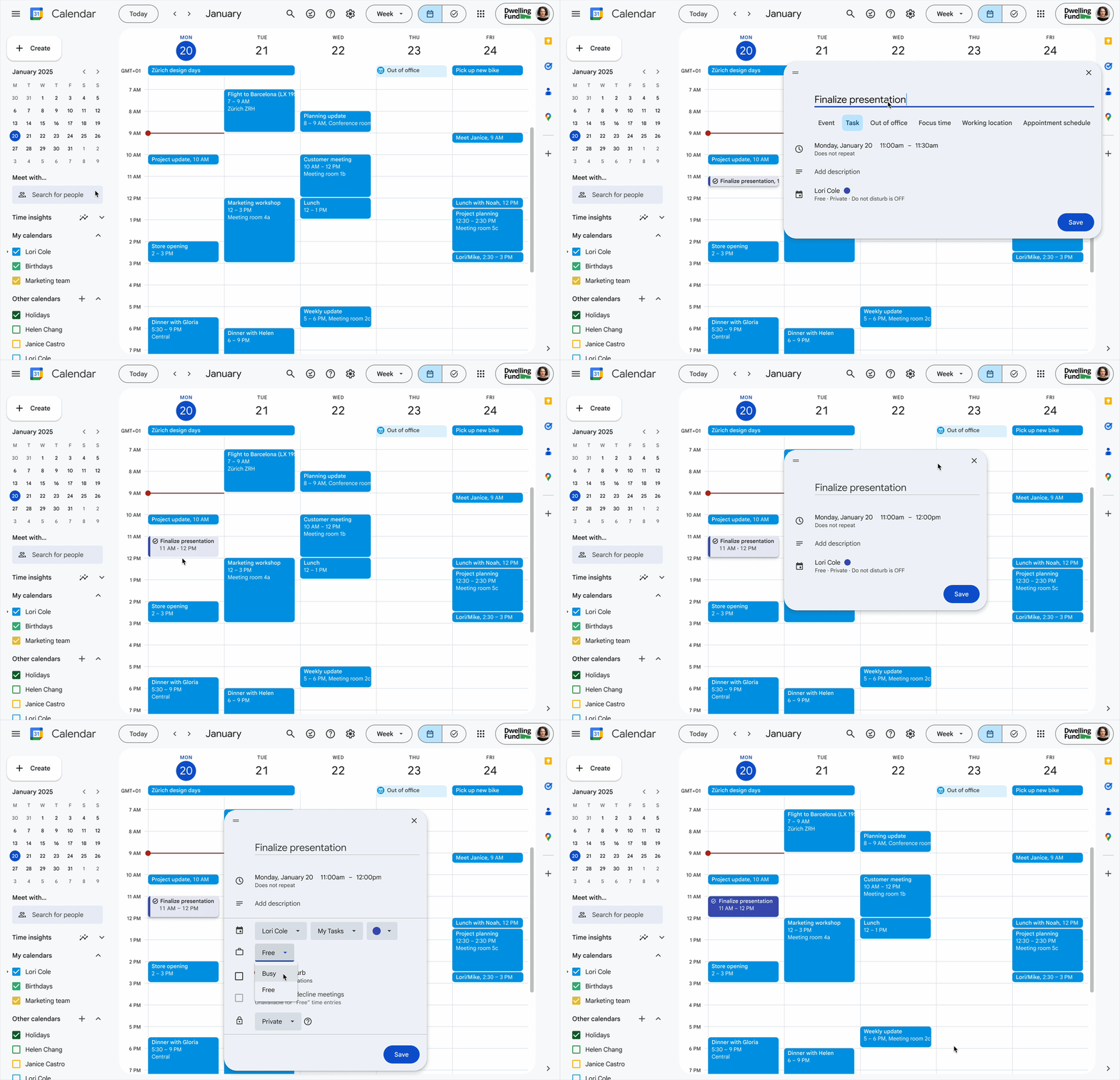
Block off time to complete a task
You can now block off time on your calendar to complete a Google Task. Previously, the task would only appear at the top of your day view with other “all-day” events. As you would with any calendar event, you can select a time block, click Task at the top of the event details, add the relevant information such as description and visibility, and click Save. The task will also appear on your Google Tasks list (either from the right side panel or at tasks.google.com), and you will be reminded until it is completed. Learn more about creating a Task in Calendar.
Chat
Changes to membership roles in spaces
In October, Google made a significant change to membership roles in spaces. The changes are as follows:
- Existing "Space Managers" are now known as "owners" and retain full control over the space.
- A new "manager" role has been added. Managers have the same permissions as owners, except they cannot delete the space or upgrade members or other managers to the owner role.
- The "member" role remains unchanged.
Learn more about the owner and manager roles in Chat spaces.
You can now send stickers in your one-to-one or group direct messages and spaces. Stickers are available on the web via chat.google.com or in the Chat tab of Gmail. Learn more about sending stickers and GIFs in Chat.
A redesigned space integrations menu
The redesigned menu is accessible through the plus (+) button beside the compose bar or by typing a forward slash (/) in your Chat space. The redesign is meant to make it easier to find and use your apps and actions quickly.
A redesigned Chat conversation header
The redesigned conversation header includes a side panel where you can access shared content and manage tasks without leaving the conversation view. The panel’s width can also be adjusted or expanded to a full-screen view as needed. The new header icons and their actions are as follows:
- Folder icon to access shared files, links, and media.
- Checkmark icon to create and manage space tasks.
- Spool icon to view and respond to active threads.
- Push pin icon to view pinned messages, files, and shared links.
Learn more about navigating Chat.
Inline threading now available in direct messages
Google has brought inline threading to one-to-one and group direct messages (DMs). This update allows you to reply in-thread to any message in a DM. Previously, inline threading was only available in spaces. Within a DM, hover over the message you want to reply to and click the spool icon to reply in a threaded chat.
Preview unread messages in the left navigation
You can now preview the last unread message in a conversation directly from the left navigation in Chat without marking it as read by hovering over the bolded conversation.
Drive
Set sharing expirations on files and folders in shared drives
You now have the ability to set expiring access for files and folders in shared drives directly from the sharing dialog on the web. Previously, this feature was only available for files/folders in your My Drive. Files in shared drives can have their expiration set for any collaborator role (Viewer, Commenter, or Editor). However, folders in drives can only have an expiration date set for the Viewer role.
Additionally, Google has changed the expiration behavior of files/folders in My Drive to align with the new shared drive experience. Previously, when you granted someone temporary Editor access to a file inside a parent folder of which they were a Viewer, they would lose all access to the file once their Editor permission expired. Now, when their temporary Editor access expires, their permission on the file will revert to the access they have on the parent folder, and they won’t lose access to the file completely. Learn more about managing expiring access in Drive.
Additional languages available for automatically generated captions for videos in Drive
When you upload a video to Drive, Google will automatically detect if the video is in one of the 27 newly supported languages and generate captions for it. Previously, this feature was only available in English. New languages available include Arabic, German, Korean, Spanish, and more. Support for Chinese is coming soon. Learn more about automatically generated captions in Drive.
New interface for viewing PDFs, videos, images, and audio files in Drive on the web
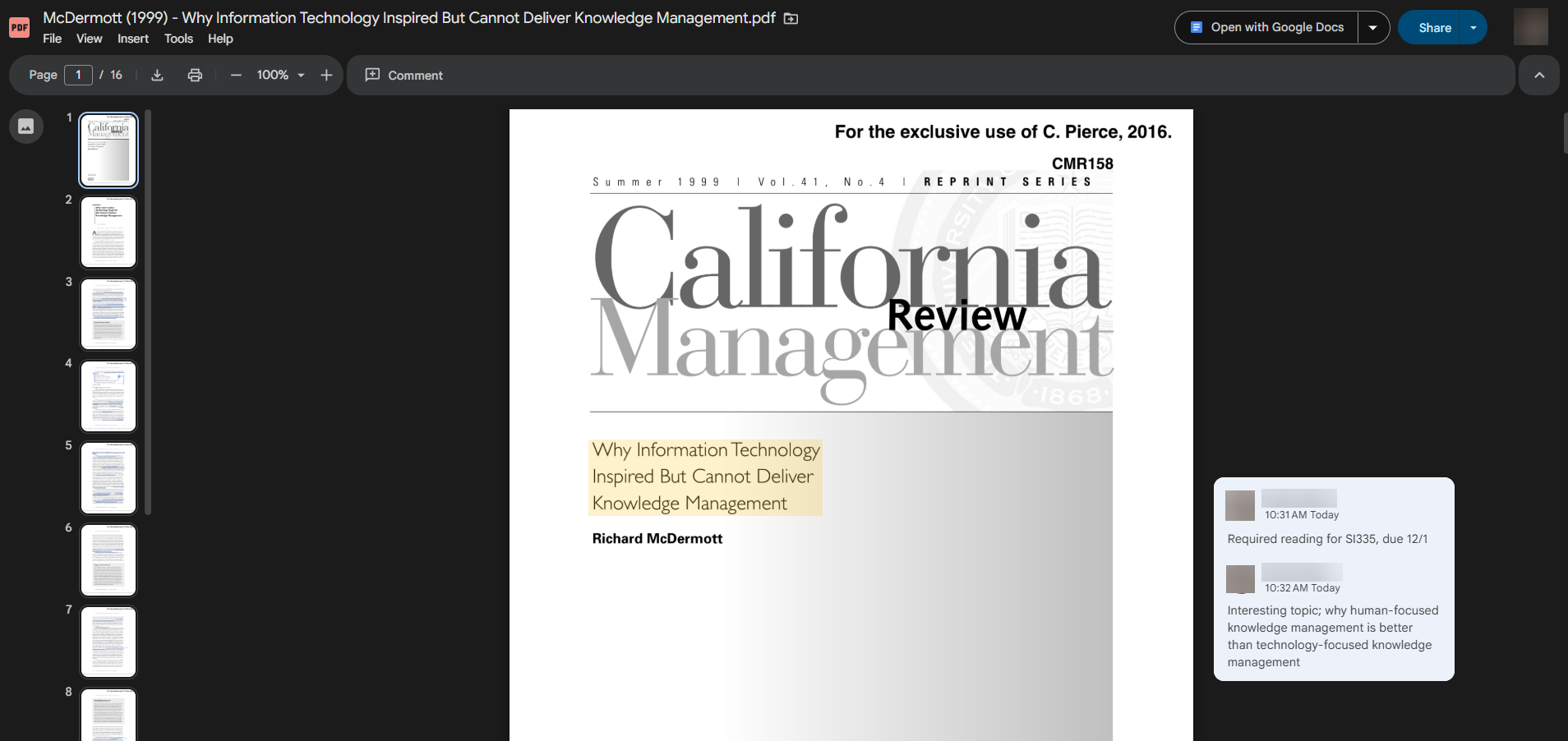
Google has improved the interface for viewing third-party file types, such as PDFs, videos, images, and audio files. To open the new interface, you must open the file in a new tab and not in Preview mode (which is the mode you’re placed in when double-clicking on a third-party Drive file). Instead, right-click on the file, hover over Open with, and select Open in new tab.
The new interface includes:
- A new left rail for PDFs, which includes a table of contents (where applicable) and thumbnails
- A new file menu similar to what you’d find when opening a Google Doc
- A new toolbar and app bar
- An option to search by transcript when looking at a video
Tip: If you would like PDFs to always open in a new tab, rather than in Preview mode, you can adjust this within your Drive settings. (Unfortunately, this is not an adjustable setting available for other file types.) Click the gear icon in the top right corner and select Settings. Scroll to the “Open PDFs” section and select New tab.
Gemini & NotebookLM
Gems sharing in the Gemini web app
You can now share Gems you’ve created in the Gemini web app with other U-M Google accounts. Gems are customizable versions of Gemini that you can personalize. Once shared, the Gem is stored in Drive and other accounts can edit, use, or make a copy of the Gem.
Gems are only shareable when custom knowledge is uploaded from a device to the Gem or files are added from Google Drive. If any other file types are added (e.g., code folders, emails, etc.), the Gem will no longer be shareable, and the sharing button will be greyed out and unavailable. Learn more about sharing Gems in the Gemini web app.
The new Learning Guide option in NotebookLM acts as your personal tutor by breaking down problems step-by-step and adapting explanations to your needs as you study. Learn about other ways NotebookLM can support your learning.
Generate presentations in the Gemini app
You can now ask Gemini to generate Slides presentations using the Canvas tool in the app. (Note this is not the same as Canvas at U-M or Slack canvases.) Open the Gemini web app, click Tools in the toolbar, select Canvas, and ask Gemini to “create a presentation.” You can specify a topic or upload your own source with the prompt.
Gemini Deep Research now integrates with your Workspace content
Gemini’s Deep Research tool now integrates directly with your Gmail, Chat, and Drive. This update eliminates the need for manual file uploads by allowing Gemini to automatically pull context from your emails, Chat conversations, and Drive files (including Docs, Sheets, Slides, PDFs, and other non-Google files). This allows the tool to generate more comprehensive and personalized reports. Learn more about using Deep Research in Gemini.
To engage with this new update, you must connect Gemini with the Google Workspace app. Go to the Gemini Connected Apps page on the web and toggle the Google Workspace app on.
In November, Google updated the models used in the Gemini app from version 2.5 to 3. They also renamed the models in the following ways:
- Fast (previously Flash) now uses the 3 Flash model.
- Thinking is a new option for more advanced questions that also uses the 3 Flash model.
- Pro (and its Deep Research tool) now uses the 3 Pro model.
Additionally, Google redesigned the web app’s navigation sidebar and added a new “My Stuff” folder where you can find the images, videos, and reports you recently created. Learn more about using the Gemini app at U-M.
Nano Banana Pro in Gemini app and NotebookLM
Also in November, Google introduced Nano Banana Pro (Gemini 3 Pro Image), their new AI image generation and editing model for the Gemini app and NotebookLM. With Nano Banana Pro, you can generate images in the Gemini app and create infographics in NotebookLM. Learn more about using Nano Banana Pro in the Gemini app and NotebookLM.
Meet
You can now create meeting timers from the Meet sidebar. Host/co-hosts can manage the timer if host controls are on. If the host controls are off, anyone in the meeting can manage it. Once the timer is started, it will be visible to all meeting participants. You can also pause or cancel the timer once it starts. Learn more about using timers in Meet.
Changes to meeting links when changing recurrence or start time of recurring Calendar events
Google has changed what happens to Meet links when you edit recurring Calendar events. Moving forward, when you modify the start time or recurrence of a recurring event for "This and following events," the remaining events will automatically generate a new, unique Meet link. The original event series will keep the original Meet link. All properties of the Meet session (e.g., host, cohosts, access restriction, etc.) are preserved for both Meet links. Previously, when this action was taken on an event, the remaining events used the original Meet link.
Automatically open picture-in-picture mode when screen sharing
Meet now supports automatically opening picture-in-picture mode when starting a screen share during a meeting. This will allow you to view your audience while focusing on your presentation content. Previously, picture-in-picture mode only opened automatically when you switched tabs.
In addition to this change, you can now control when picture-in-picture should open automatically from the General tab in Meet settings.
Note that automatic picture-in-picture mode for tab switching requires you to grant permission in your browser once. Learn more about using automatic picture-in-picture mode in Meet.
Previously Communicated
Updates to restricted file/folder sharing experience in Google Drive