
Following our March and October 2025 communications regarding the new "limited access" folder setting, Google has completed automatically migrating all remaining items with "legacy" restricted access settings to the new limited access experience.
What changed?
Last year, Google introduced limited access folders to streamline permission management. While new folders have used this setting for months, some older files and folders still relied on legacy "restricted" settings (such as those using the now-retired “Update item only” option mentioned in October’s communication).
With this update, Google automatically converted those remaining legacy items to the limited access setting to ensure a consistent sharing experience across My Drive and shared drives.
Key information
- This migration did not change who can view or access your files. It only updated the underlying setting to match Google’s updated sharing model.
Items that have been automatically migrated will display a restricted symbol next to the file’s name and a note in the file’s Activity dialog stating that "limited access was turned on for an item” by Google Drive.
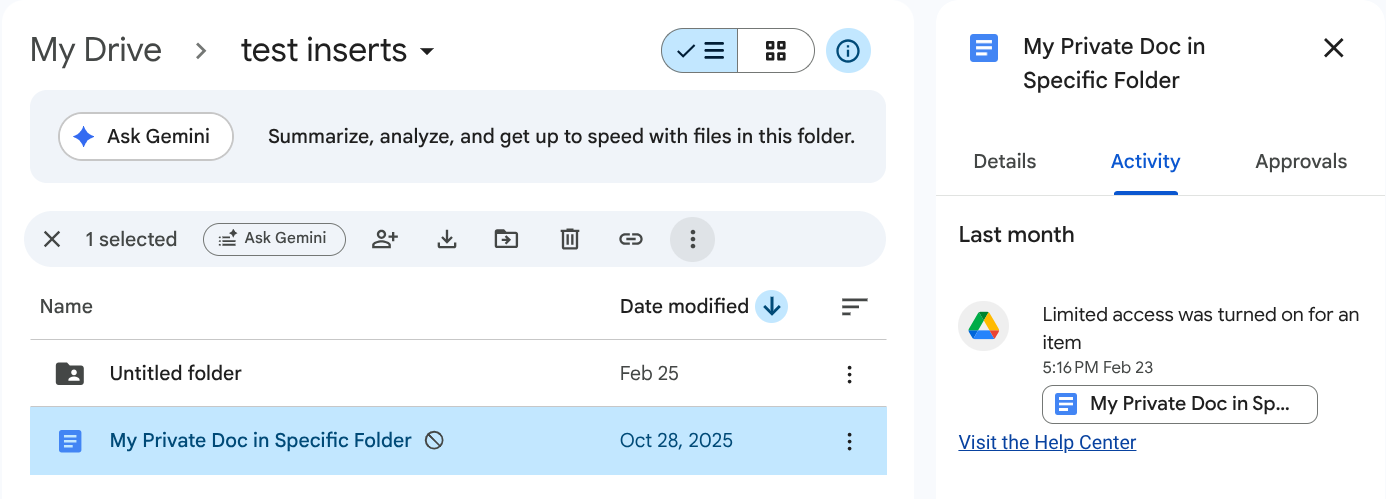
- The updated files are hidden from people with access to the parent folder. This is a different experience than if the file were in a limited access folder, as the item would appear grayed out to them instead.
- Once removed from a file, limited access cannot be reapplied (except by moving the file into a limited access folder). Files outside this scenario cannot have limited access applied directly to them.
How to audit your files
If you would like to view which of your files (if any) have been moved to the limited access setting, you can use the following search query in the Google Drive search bar: owner:me is:limitedaccess
This search will return all items you own that currently have the limited access setting applied, including those that Google recently migrated.
Refer to the Google Help Center to learn more about limiting access to files and folders in Google Drive.