
Updates
Chat
Mark a thread as unread
You can now mark threads as unread in Chat messages. Previously, you could only mark messages in the main conversation stream as unread. Learn more about marking a thread as read/unread.
Drive
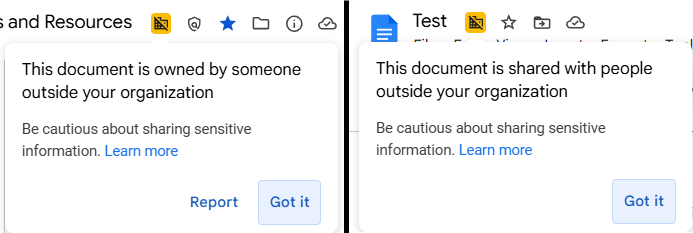
New alert badge when accessing externally-owned or shared files
A badge now displays on Google Docs, Sheets, and Slides files when the file is owned by or shared with someone external to U-M Google. You'll also see a pop-up with more details and the option to report the externally-owned file for abuse (if applicable). These alerts help you identify potentially harmful files and when to be cautious when sharing confidential information in external files.
Granular control options for who can respond to existing Forms
Last year, Google upgraded Forms to give you more granular control over who can access and respond to them. At the time, this only applied to newly created forms. In August 2025, Google automatically upgraded all existing forms to the new controls. The upgraded experience is now similar to how you normally share Google files with external individuals. Learn more about publishing and sharing forms with responders.
One major change is that you could previously restrict responses to “trusted domains” (i.e., University of Michigan). This capability was phased out on September 8 as part of the upgrade. Responders from trusted domains can no longer access or submit responses to these forms. You must review the sharing settings in your upgraded forms to ensure responders regain access if you used the “trusted domains” feature.
Restrict printing, copying, and downloading abilities of editors
File owners and shared drive Managers can now apply printing, copying, and downloading restrictions to collaborators with edit permissions. (Editors still retain their editing abilities.) Previously, they could only apply this restriction to viewers and commenters. Learn more about restricting permissions for collaborators in Drive.
Send feedback directly to Form owners
Form responders can now contact form owners directly by clicking Help and feedback at the bottom of a form and selecting Contact form owner. Learn more about contacting form owners.
Search for embedded content in Sites
When you perform a search, the results will also include content from within embedded files, such as Google Docs, Sheets, Slides, and PDFs. Previously, searching on a site only showed results from the text directly on the pages. Learn more about searching for embedded content in Sites.
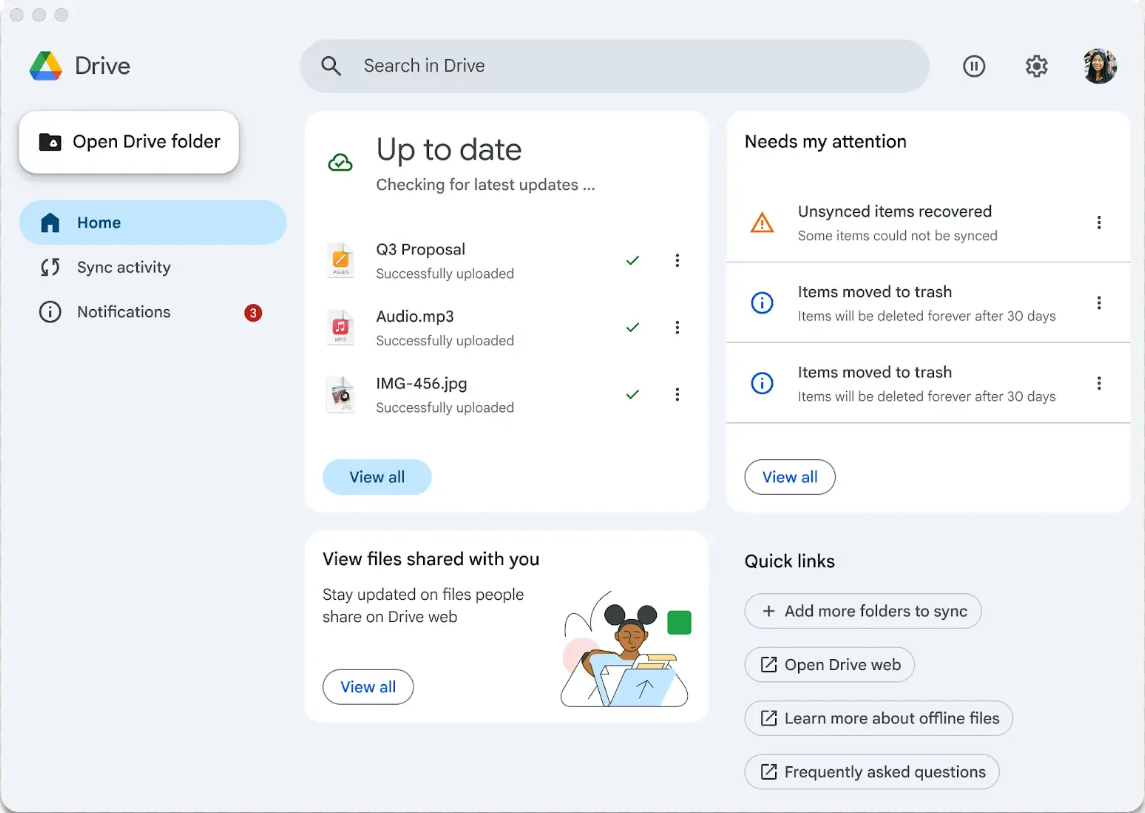
Refreshed user interface in Google Drive for desktop app
The Drive for desktop app will now display important information, such as sync activity, notifications, shared files, and more in a single view. Learn more about the Google Drive for desktop redesign.
Video engagement insights in Drive
You can view the total number of times a video is opened under a new Analytics section within the Details panel. To view the new Analytics section, open the video in Drive > click the three-dot menu > click Details > locate the "Analytics" section.
Thumbnail previews on video progress bars in Drive
Similar to YouTube, you can now view thumbnail previews when hovering over the video’s progress bar in Drive. This feature is only available for newly uploaded videos.
Arrow keys move an object by a pixel distance in Slides
Using the arrow keys to “nudge” an object in a Slides presentation will now move it by one pixel. If you want to move the object a larger distance, press Shift + arrow key.
Gemini & NotebookLM
You can generate quizzes for any subject in the Gemini app by uploading relevant documents or entering a prompt like “Give me a practice quiz about the nervous system.” Based on the uploaded files or prompt, Gemini will generate interactive quizzes, featuring multiple-choice or true-or-false questions. Once you’ve completed the quiz, you’ll see an overall score, accuracy breakdown, and insights regarding areas of improvement and where to focus your study efforts. Learn more about creating quizzes in Gemini.
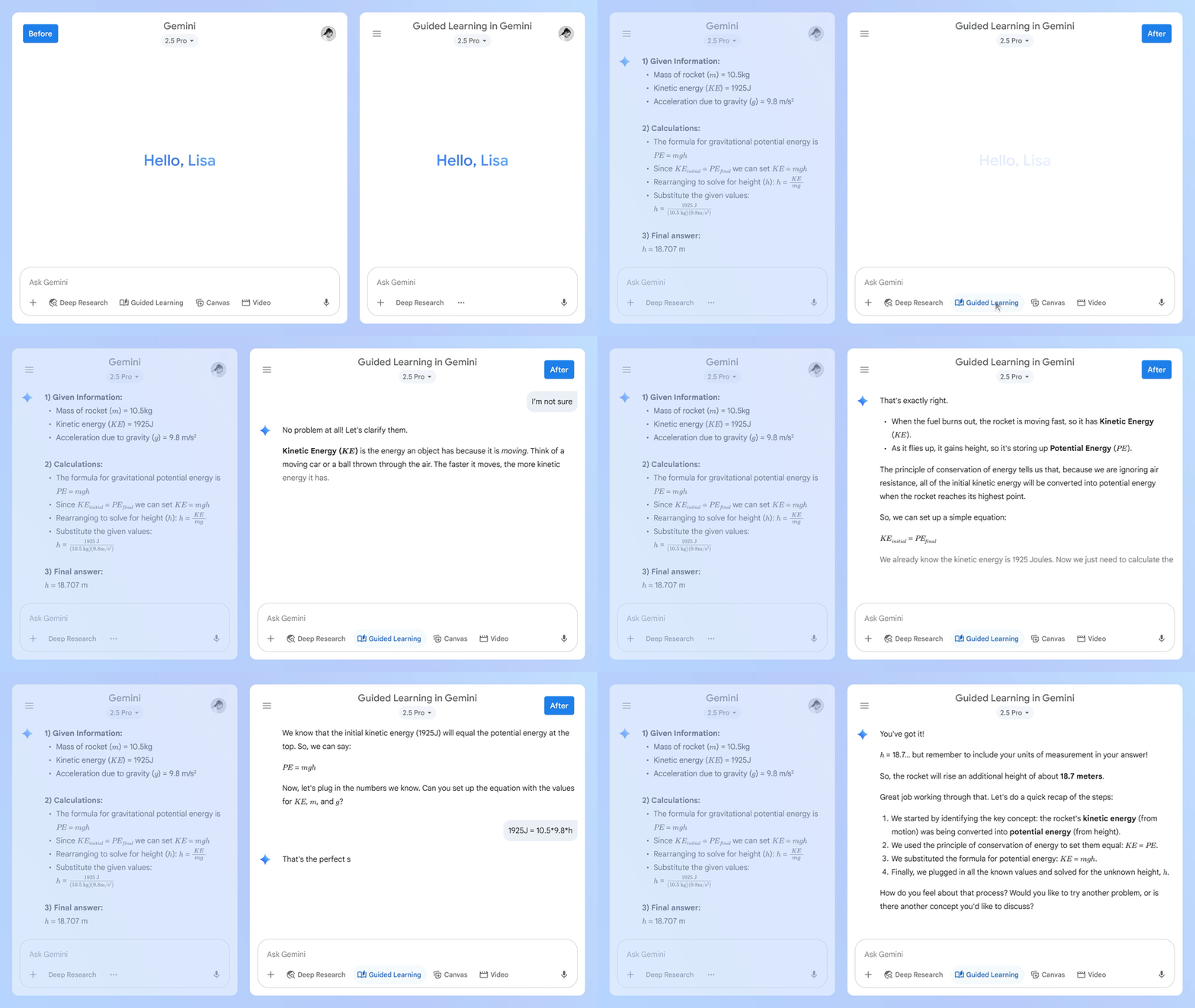
You can now use Gemini to create flashcards and study guides, and customize the number of questions and question types in generated quizzes. Gemini will now automatically integrate visuals and YouTube videos into its responses. Finally, you can utilize the new “Guided Learning” feature, which walks you through subjects step-by-step. Learn more about Guided Learning and the other study tools in Gemini.
Create illustrated storybooks in Gemini
You can now use Gemini to craft personalized, illustrated storybooks about any topic with read-aloud narration.
Video Overviews and upgrades to the Studio panel in NotebookLM
Like Audio Overviews, you can now turn your notebooks and their sources into Video Overviews that are narrated by an AI voice. You have the option to customize your Video Overview by specifying topics to focus on, indicating your learning goals, describing the target audience, and more. Relatedly, you can now generate multiple Audio Overviews in a single notebook and shareable links to content, such as Audio Overviews and Video Overviews. Learn more about Video Overviews in NotebookLM.
Gemini Live is a conversational feature available in the Gemini mobile app. With Live, you can talk naturally with Gemini, asking it questions, brainstorming ideas, and more. You can even share your live camera view to ask questions about your surroundings. (As with other Gemini features, your interactions are not human-reviewed or used to train Google’s AI models, as long as you are using your U-M Google account to access the app.) Learn more about using Gemini Live.
Incorporate information from Calendar, Tasks, and Keep in your conversations with Gemini Live
You can now reference Calendar, Tasks, and Keep in your conversations with Gemini Live. Examples include asking Gemini about upcoming meetings on your Calendar, specific notes in Keep, or upcoming Tasks. To reference Calendar, Tasks, and Keep in conversations, the “Google Workspace apps” app must be enabled in your Gemini settings.
Link your Calendar booking pages when composing emails
By clicking the Calendar icon at the bottom of your email draft in Gmail, you can view a list of existing booking pages (i.e., appointment schedules) and an option to create a new booking page. Once a booking page is selected, it will be automatically inserted into the email draft. Learn more about appointment schedules and booking pages in Calendar.
Meet
You can now customize the styling of captions in Meet, including the font size, font type, color, and background color. You can customize captions during the meeting by hovering over them or going to Settings > Captions > Customize your captions. Your settings will persist across your meetings and can be changed at any time.
New host management control for who can ask to join a meeting
Meeting hosts can now control who can request to join a meeting. This option is available when the meeting access type is “Trusted” or “Restricted” and can be configured:
- From the Calendar invite: Go to Video call options (gear icon) > Host controls > Meeting access type. When “Trusted” or “Restricted” is selected, you can uncheck the “Anyone with the meeting link can ask to join" box.
- During the meeting: Go to Host controls (lock icon) > Meeting access type. You can uncheck the “Anyone with the meeting link can ask to join” box.
Learn more about controlling access to Meet sessions.
Previously Communicated
None!