
Use the Michigan AI App Store to link U-M GPT to the services you already use
With the launch of the Michigan AI App Store, we are proud to introduce U-M to M-Connectors, easy-to-use, secure connections between AI tools like U-M GPT and popular services such as Google Workspace, Canvas, Slack, Zoom, Dropbox, and MCommunity. You can access them using the M-Connector app store. These connections help U-M GPT work with information you can already access so you can find what you need, create useful content, and complete supported tasks without switching between multiple apps.
You remain in control
M-Connectors are designed to work within your existing permissions and keep you in charge of what happens next.
- Your existing permissions apply. A connector does not give you access to information you could not already access.
- You choose what to connect. Each connector is installed separately, and you decide which connectors to enable.
- Approval comes before action. U-M GPT asks you to review and approve a supported action before it is completed on your behalf.
- You verify the details. Review AI-generated results for accuracy. Before approving an action, carefully check recipients, files, permissions, dates, and proposed changes.
- U-M privacy protections apply. Data shared with ITS AI Services is protected according to U-M policies and is not used to train publicly available AI models. Learn more in the ITS AI Services Privacy Notice.
Bring your context into the conversation
Using the services available in the M-Connectors app store, you can ask U-M GPT to locate content, gather context, summarize information, create a draft, organize next steps, or prepare a supported action for your approval.
Find and understand information
Search for files, messages, course information, meetings, and other content across the services you connect. U-M GPT can help summarize lengthy material, identify themes, compare sources, and surface relevant details.
Create and organize
Use your information with M-Connectors to prepare meeting briefs, outlines, email drafts, checklists, study plans, summaries, and other useful content.
Move from information to action
Some connectors can help U-M GPT take supported actions on your behalf, not just provide an answer. U-M GPT works with your existing permissions and asks you to review and approve an action before it is completed.
Connect U-M AI to the tools you use. Bring services like Canvas, Gmail, Google Calendar, Google Drive, Dropbox and more into U-M GPT and Maizey.
Get started in U-M GPT by finding the M-Connectors window in the top right corner. M-Connectors can then be added and will appear as active in the window once activated.

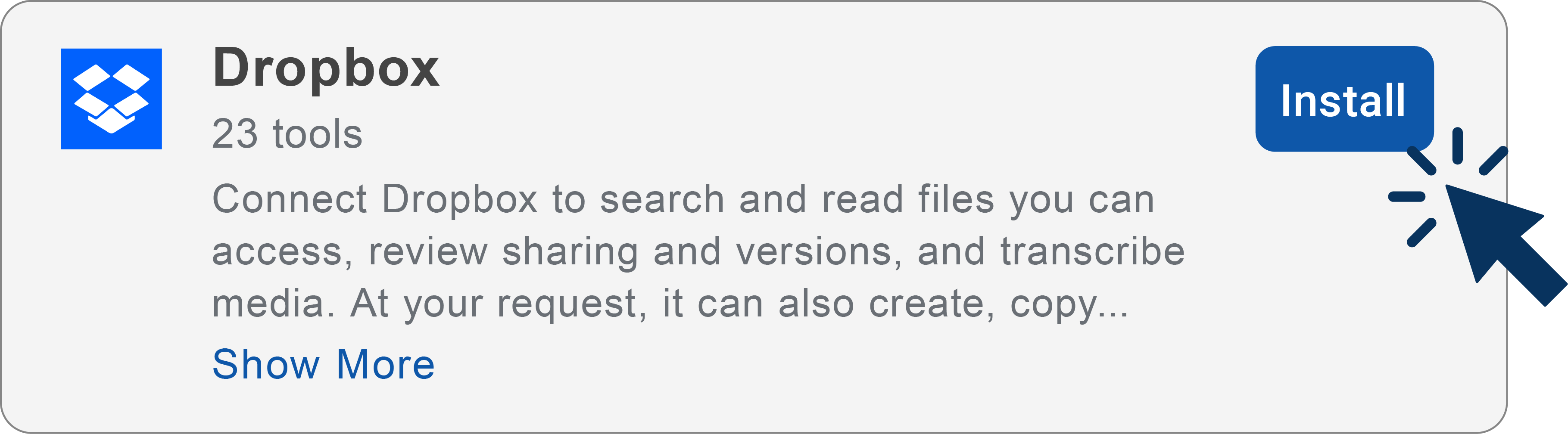

Install and enable an M-Connector
M-Connectors is currently only available in U-M GPT when using the GPT-5.6 Sol (Agent) model.
- Log in to umgpt.umich.edu
- Click the Options menu (three dots) in the lower-left corner of your U-M GPT homepage.
- Click Manage Connectors to open the M-Connectors app store page.
- Browse the list of available M-Connectors.
Note: Available M-Connectors and capabilities may vary by affiliation, connected service, and account permissions. - Select the M-Connector you want to use and click Install.
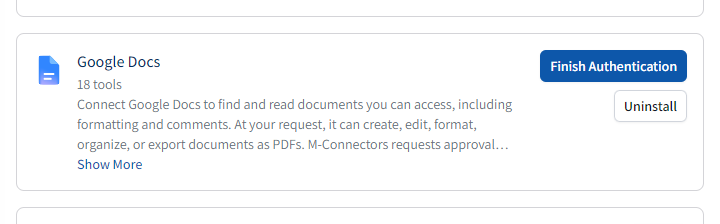
Note: Install one M-Connector at a time. Clicking Install on several M-Connectors at the same time will cause issues with the installation. - If the connector displays Finish Authentication, click it and follow the prompts to sign in and complete authentication for the service. Otherwise, skip to step 8.
Note: Some connectors do not require additional authentication and will not display a Finish Authentication button.
- Click Connect on the Connector authorization page and complete any prompts that follow.
- Close the M-Connectors app store page when installation is complete.
- Click the No Active Connectors button in the top right of the U-M GPT homepage.
- Locate the M-Connector(s) you installed and click the toggle to active.
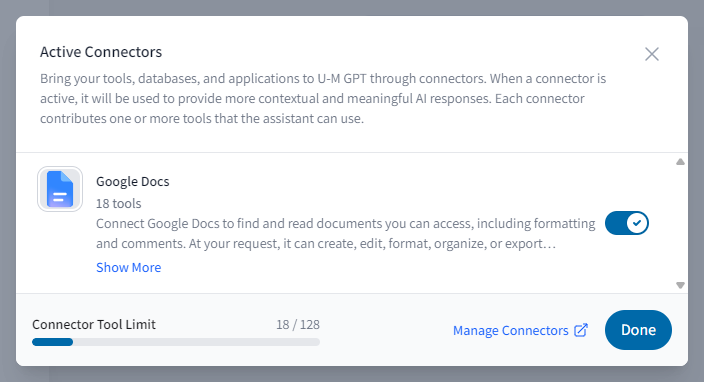
- Click Done on the Active Connectors window when you’ve enabled the connectors relevant to your current task/conversation.
M-Connectors videos
Want to see more case studies and walkthroughs to help you use M-Connectors to the fullest? Explore our M-Connectors videos page to learn more.
Services you can connect
Install only the M-Connectors that are useful for your work. Available options may include:
- Google Workspace: Work with supported content and actions across M-Connectors such as Gmail, Google Drive, Google Calendar, Google Docs, Google Slides, and more.
- Canvas: Review supported course information, assignments, deadlines, and other learning content.
- Slack: Find and summarize relevant conversations and shared context.
- Zoom: Work with supported meeting information and content.
- Dropbox: Locate and use files you can access.
- MCommunity: Find supported university directory information.
Available connectors and capabilities in the M-Connectors app store may change as the service evolves. If you are unsure what a connector can do, ask U-M GPT,, “What can I do with my connected Google Drive tools?”
See what M-Connectors can do
Prepare for a meeting
Ask U-M GPT to gather relevant files from Google Drive and context from Gmail and Calendar, then create a concise meeting brief.
Try this prompt:
Using my connected Google services, find the agenda and relevant project files for tomorrow’s meeting. Summarize the key decisions and list what I should prepare.
Review upcoming coursework
Use the Canvas M-Connector to bring together supported information about upcoming assignments and deadlines.
Try this prompt:
Review my upcoming Canvas work for the next seven days. Organize it by due date and suggest a study plan.
Turn a conversation into next steps
Use supported content from Slack or Zoom to identify decisions, responsibilities, and follow-up work.
Try this prompt:
Summarize the decisions and action items from this project discussion. Organize the action items by owner and due date.